
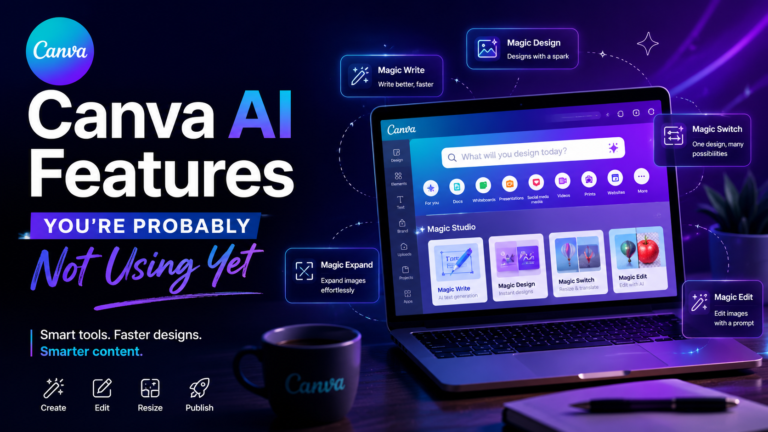
Discover powerful Canva AI features that can help you write, design, edit images, repurpose content, and create marketing assets faster. Here are the Canva AI tools you may not be using yet.
Canva is no longer just the tool where you pick a template, change a few colours, and download a social media post.Over the time, it has quietly evolved into something much bigger.
For creators and marketers, Canva now combines designing, writing, image editing, content generation, resizing, translation, and automation in one workspace. And honestly, some of its most useful AI-powered features are the ones many users completely overlook.
If you already use Canva for basic graphics, you might be surprised by how much time you could save by exploring a few features beyond templates.
Here are the Canva AI features you’re probably not using yet — and how they can actually improve your content workflow.
1. Magic Write: More Than Just an AI Text Generator
Magic Write can be surprisingly useful when you’re stuck before the design process even begins.Instead of opening another AI writing tool, you can use Magic Write directly inside Canva to help generate:
-Social media captions
-Headline ideas
-Blog outlines
-Product descriptions
-CTA variations
-Presentation copy
-Short summaries
-Content ideas
The real advantage is workflow.
Imagine you’re designing a LinkedIn post. Instead of writing the caption somewhere else, copying it, editing it, and then returning to Canva, you can develop the idea and the visual content within the same ecosystem.
A practical use case
Suppose your topic is:
“5 AI tools every digital marketer should know.”
You can use Magic Write to brainstorm:
-Different hooks
-Carousel slide copy
-Caption ideas
-CTA options
-Shorter versions for Instagram
The first output may not always be perfect — and it shouldn’t be treated as final copy. But it can eliminate the intimidating blank-page stage.
Best use: Brainstorming and creating first drafts.
2. Magic Design: Start With an Idea Instead of a Template
We’ve all open Canva, search for a template and keep up scrolling again and again till we find the right template.But instead of searching endlessly for the right template, you can provide an idea, prompt, or piece of content and let Canva suggest a starting direction. Canva describes Magic Design as a way to generate or recommend designs based on the content and context you provide.
This can be particularly useful for:
-Blog graphics
-Social media posts
-Presentations
-Promotional content
-Campaign concepts
The important thing is not to accept the first design blindly.
Think of Magic Design as your creative starting point, not your final designer.
Generate ideas. Compare directions. Choose the strongest layout. Then customize it to match your brand.
Best use: Breaking creative blocks.
3.Magic Switch: One Piece of Content, Multiple Formats
This is probably one of the most useful features for content marketers.After creating one piece of content we need:
-A LinkedIn version
-An Instagram post
-A Story
-A presentation slide
-A different language version
-A document version
Normally, this means creating and adjusting multiple files.
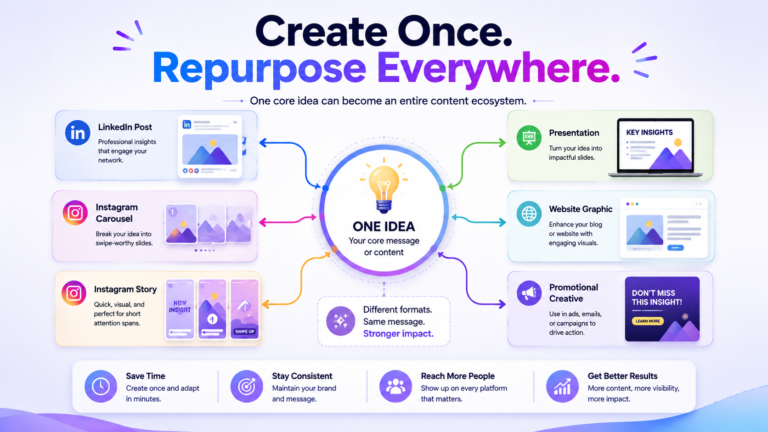
Magic Switch is designed to help transform content into different formats and, in some workflows, translate or reformat content without manually rebuilding everything from scratch.It is especially valuable for the way modern marketers work.
Think of your content like this:
One idea
↓
One core design
↓
Multiple platform-ready versions
That doesn’t mean every platform should receive identical content. Instead, Canva can help you create the starting versions faster, while you adjust messaging for the audience and platform.
Best use: Content repurposing.
4. Magic Grab: Turn Parts of an Image Into Editable Elements
I personally love this feature and it feels almost like Photoshop magic.
Magic Grab can identify and separate a subject or element within an image so you can reposition it and work with it more flexibly inside your design.
For example, imagine you have a photograph of a person positioned in the centre.But your new layout needs the person on the right so that your headline can sit on the left.Instead of rebuilding the composition from scratch, Magic Grab can help make the subject more editable.
This is particularly useful for:
-Social media creatives
-Blog featured images
-Promotional banners
-Presentation graphics
Best use:Quickly changing image composition.
5. Magic Expand: Fix the "Wrong Image Size" Problem
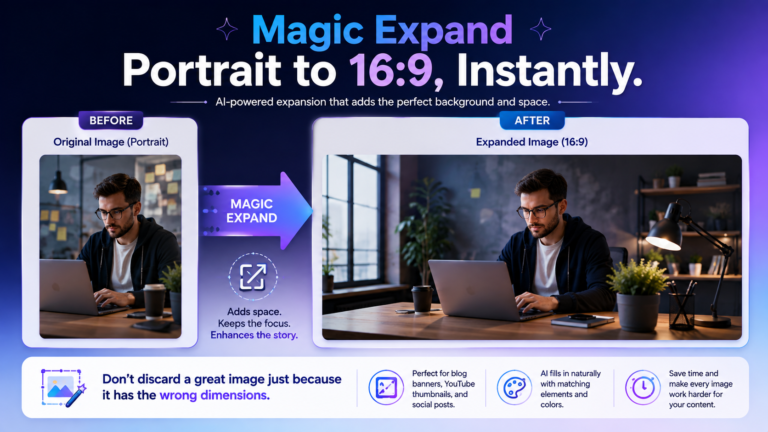
Have you ever found the perfect image but in wrong size ? Maybe you have a vertical image, but your website needs a horizontal 16:9 featured image.Then Magic Expand feature is your go to feature.
Magic Expand uses AI to extend an image beyond its original borders, helping create additional space around the existing composition.
For content creators, this can be extremely useful.So instead of rejecting a good image because it doesn’t fit your layout, you may be able to adapt to the composition.
Example:
Original: -Portrait image
↓
Magic Expand:-Adds visual space
↓
Result:-Wider 16:9 website-friendly composition
Of course, AI-generated extensions should always be reviewed carefully. Check faces, hands, objects, backgrounds, and edges before publishing.
Best use:-Adapting images to different aspect ratios.
6. Magic Edit: Change Specific Parts of an Image With a Prompt
Sometimes an image is almost perfect,composition is good,the lighting works but only one element is wrong.
Maybe you want:
-A different background
-A different object colour
-An added visual element
-A replaced object
Magic Edit solves this problem as it allows users to select parts of an image and describe the desired change using a prompt which can save time when you need a quick creative adjustment rather than rebuilding an entire visual.
However, the key word is quick.
AI image editing isn’t always perfect. Complex objects, text, logos, faces, and intricate details may require several attempts.
Use it as a creative assistant — not as a replacement for reviewing the final design.
Best use:-Quick visual experimentation.
7. Dream Lab and AI Image Generation: Create the Visual You Can't Find
Stock images are useful but sometimes the exact image you imagine simply doesn’t exist.
You might need:
-A futuristic workspace
-A conceptual AI illustration
-A unique hero visual
-A specific marketing scene
-An abstract technology background
Canva’s AI image-generation tools allow you to create visuals from written prompts within the Canva ecosystem. Canva has also expanded its AI-assisted creative workflows around generating designs, documents, and visuals from prompts.
The quality of the result often depends heavily on your prompt.
Instead of writing:
> “AI marketing image”
Try something more specific:
> “Premium editorial illustration of a digital marketer working with AI tools, modern workspace, deep blue and purple lighting, clean technology aesthetic, cinematic composition, wide 16:9 format”
The more clearly you describe:
-Subject
-Environment
-Style
-Lighting
-Composition
-Aspect ratio
…the closer your output is likely to be to your original idea.
Best use:-Creating unique visuals for specific concepts.
8. AI-Powered Content at Scale
This feature becomes particularly interesting when you’re creating lots of content.
Canva has expanded tools that combine AI, spreadsheets, and bulk workflows to help create multiple pieces of branded content more efficiently. This can be useful for marketing campaigns, social calendars, catalogs, and other repetitive content formats.
Imagine you need to create:
-30 social posts
-20 product graphics
-Multiple campaign variations
-Localized versions of the same creative
Creating every asset manually can quickly become repetitive.
The smarter approach is:
1. Build a strong template.
2. Organize your content.
3. Automate repetitive variations.
4. Review every output.
The last step matters.
AI can accelerate production.
It cannot automatically guarantee that every piece is strategically effective.
Best use:-Repetitive content production.
The Biggest Mistake: Using AI Without a Workflow
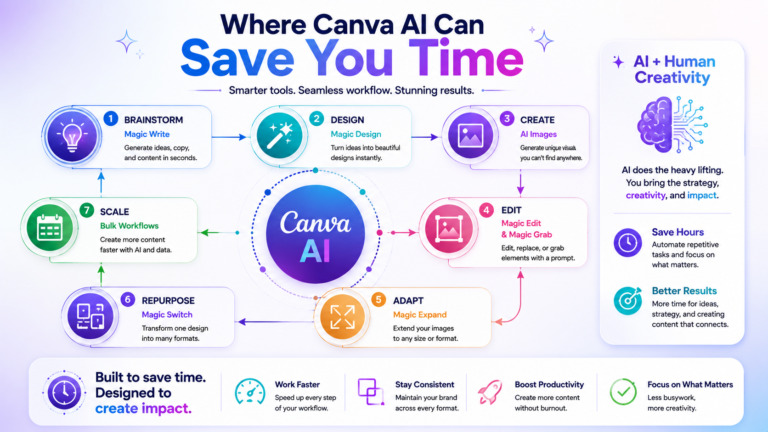
The biggest advantage of Canva AI isn’t any single feature.It’s how the features can work together.
For example:
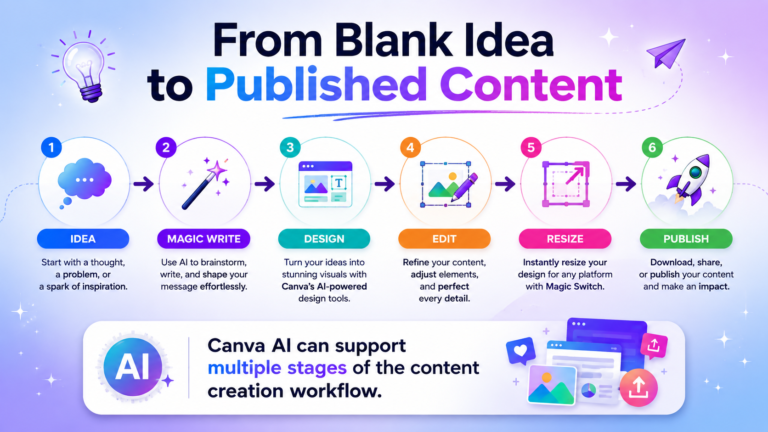
A smarter content workflow could look like this:
Step 1:-Use AI to brainstorm the topic.
Step 2:-Develop initial copy.
Step 3:-Create a visual direction.
Step 4:-Generate or source images.
Step 5:-Edit and customize the design.
Step 6:-Adapt it for multiple platforms.
Step 7:-Review everything manually before publishing.
That’s where AI becomes genuinely useful.AI isn’t useful when it replaces your thinking , its useful when it removes repetitive friction from your workflow.
My Take: The Most Underrated Canva AI Features
After working with Canva for content creation, the tools I find particularly useful are not necessarily the ones that create everything automatically.
The biggest time-savers are the features that help you:
-Get past the blank page
-Experiment with different layouts
-Fix images that don’t fit
-Reuse content intelligently
-Adapt one idea into multiple assets
That’s where tools like Magic Write, Magic Design, Magic Expand, and Magic Switch can be especially practical.
The goal isn’t to let AI create everything for you.The goal is to spend less time on repetitive tasks — and more time improving the ideas, message and strategy behind your content.
Final Thoughts
Canva AI is becoming much more than a collection of “magic” buttons.
It is gradually becoming a connected creative workspace where writing, design, image generation, editing, and content production can happen together. Canva’s newer AI direction also emphasizes conversational creation, editable design outputs, brand-aware workflows, and integrated creative assistance.
But here’s the important part:
AI can generate faster.
It cannot automatically create better strategy.
The strongest content still needs:
-A clear message
-A good understanding of the audience
-Consistent branding
-Human judgment
-Final quality checks
Use Canva AI to speed up your process.But keep your creativity and strategic thinking at the centre because the best results usually come from a simple combination:“AI for speed, Human thinking for direction”